How to Retrieve Credentials for Your BayarCash Payment Gateway
So, we’re ready to get your online store up and running! To integrate BayarCash with your website, we need two specific pieces of information from your account: your Personal Access Token (PAT) and your API Secret Key.
Before we start: If you haven’t created your BayarCash account yet, you can sign up here to get started with the merchant onboarding process.
Since these are sensitive security keys, you’ll need to retrieve them from your BayarCash dashboard. Here is a quick 3-step guide on how to get them and how to enable specific payment methods like Credit Cards.
Step 1: Retrieve Your API Credentials (PAT & Secret Key)
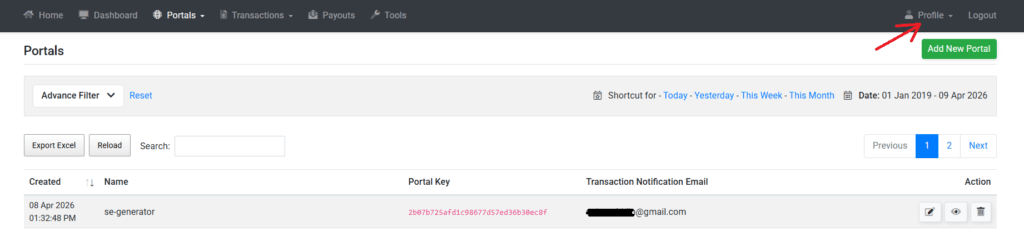
- Log in to your BayarCash Merchant Console.
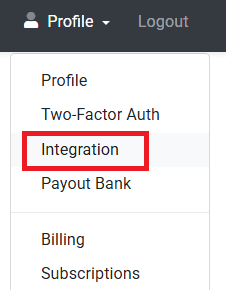
- On the sidebar, click on your Profile and select Integration.
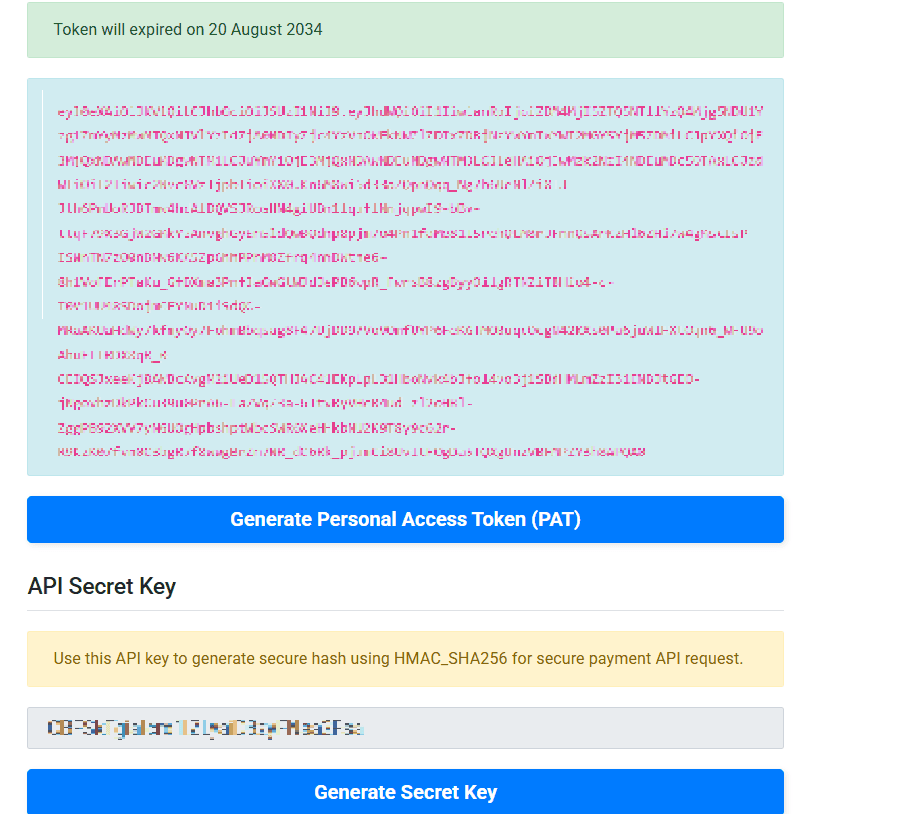
- You will see two fields:
- Personal Access Token (PAT)
- API Secret Key
- Copy these strings of text and send them to me securely. Treat these keys like your ATM pin. Don’t share them in public groups; send them directly to me!
Step 2: Requesting Additional Payment Channels (Credit Cards, etc.)
By default, standard FPX (online banking) is usually active. However, Credit Card (Visa/Mastercard) and certain e-wallets are not enabled by default.
To enable these, BayarCash requires additional documentation for compliance.
- Contact Support
- Go to your designated Telegram or WhatsApp group chat with the BayarCash team.
- The Request
- Message them saying: “Hi, I would like to enable the Credit Card channel for my account”
- Submission
- They will guide you on the paperwork needed.
- Once approved, you are ready for the next step.
Step 3: Activating the Channels in Your Portal
Once the BayarCash team notifies you that your request has been approved and the channel is “Active,” you must perform one final step in your portal:
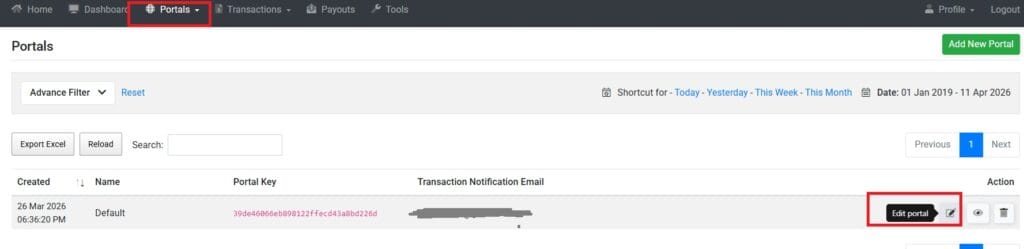
- Inside your BayarCash Console, navigate to the Portals section.
- Select the portal linked to your website and click edit portal.
- Fill in your website address.
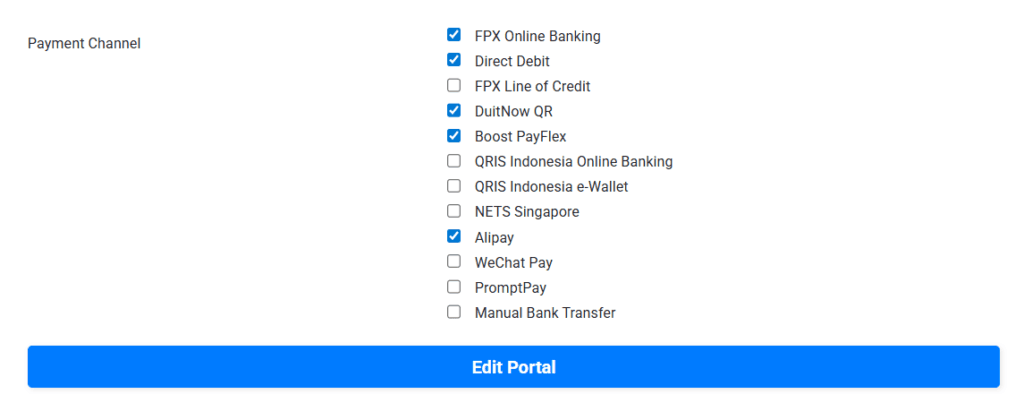
- Look for the Payment Channel list.
- Make sure all required payment channels are checked.
- Click Edit Portal.