
Create a Blog Post on Your Website
Adding regular updates to your website is one of the best ways to keep your audience engaged. Follow this simple guide to move your content from a document into WordPress correctly.
1. Copy and Paste Your Content
It is often easier to write your article in a separate document file first. Once your draft is ready, follow these steps:
- Log in to your WordPress dashboard.
- Go to Posts and click Add New.
- Copy the text from your document and paste it directly into the main editor area.
2. Organise Your Content with Headings
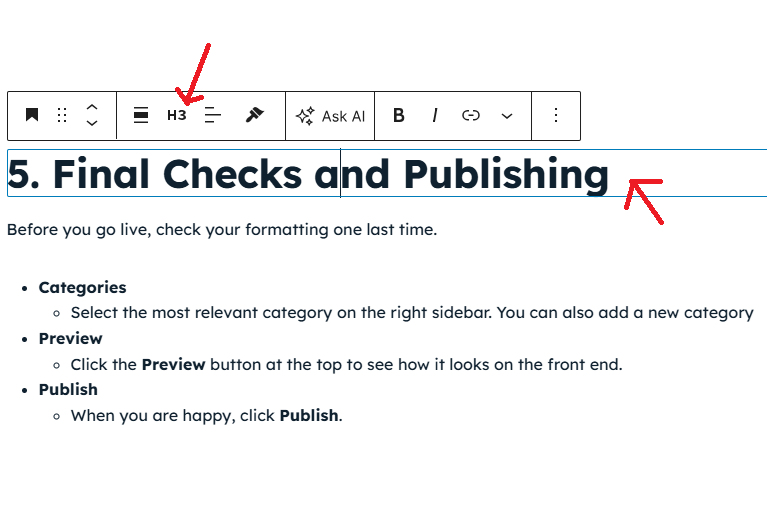
Headings help readers and search engines understand the structure of your page. In WordPress, you can set these using the “Heading” block.
- H1 Tag
- This is your main title. You should only have one H1 per post. It tells the reader exactly what the page is about.
- H2 Tag
- Use these for your main sections. Think of these as the “chapters” of your blog post.
- H3 Tag
- If you have sub-sections within an H2, use an H3. This keeps your information organised and easy to scan.
3. Add Images and Alt Text
Images make your post more visually appealing. Its much easier if the word file where your content was based copied from already contained the pictures. If not, simply follow the steps below to add images. It is vital to describe them for accessibility and search engines.
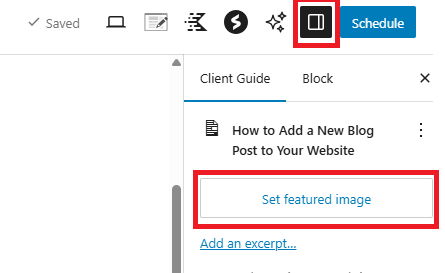
- On the right of your browser, click on “Set Featured Image” to add the hero image for this particular post.
- To add images within the content, click the + icon to add an Image block.
- Upload your photo or choose one from the Media Library.
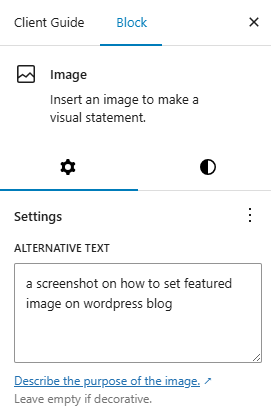
- On the right-hand side settings, look for the Alt Text (Alternative Text) box.
- Write a short, clear description of what is in the photo. For example: “A person sitting at a desk using a laptop.”
4. Adding Links
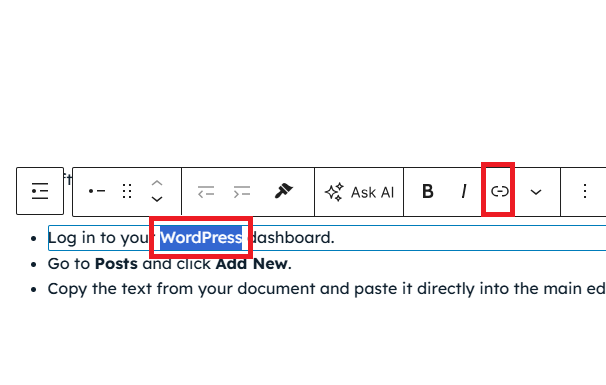
Links help connect your post to more information. To add a link, highlight the text you want to use, click the Link icon in the toolbar, and paste your URL.
- Internal Links
- These are links to other pages or posts on your own website. They help keep readers on your site longer and show how your topics are related.
- External Links
- These are links to other websites. Use these to cite your sources or point readers to helpful tools and resources. It is a good habit to set these to Open in New Tab so the reader does not lose your website.
5. Final Checks and Publishing
Before you go live, check your formatting one last time.
- Categories
- Select the most relevant category on the right sidebar. You can also add a new category
- Preview
- Click the Preview button at the top to see how it looks on the front end.
- Publish
- When you are happy, click Publish.
If you get stuck at any stage, you can refer back to the video tutorial provided to see these steps in action.