Create Pop-Ups with the Hustle Plugin
The Hustle plugin is a powerful tool for promoting events and special offers. Follow these steps to set up your first pop-up.
1. Create a New Pop-Up
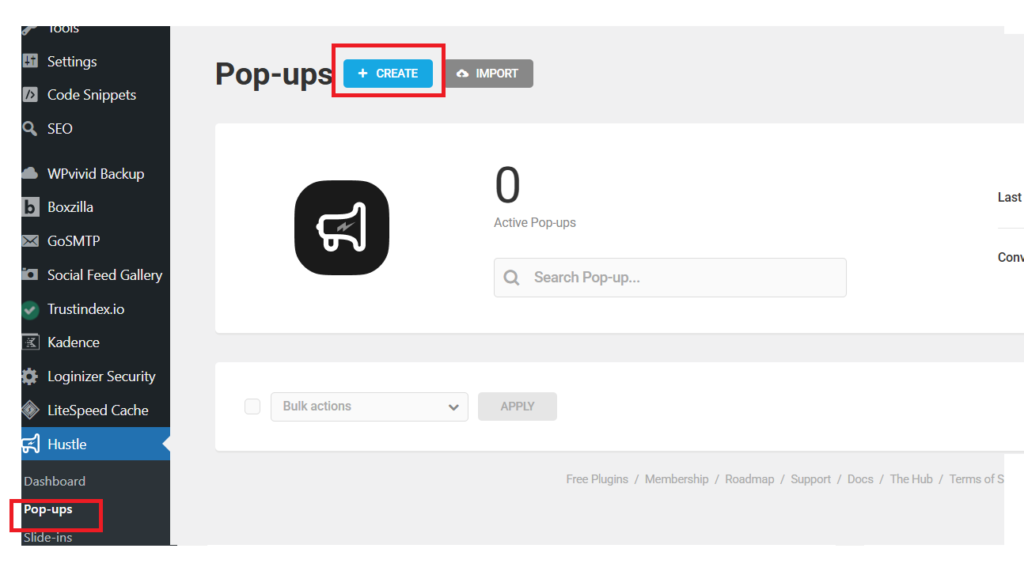
- Log in to your WordPress dashboard.
- Navigate to Hustle in the side menu and select Pop-Ups.
- Click the Create button.
- Give your pop-up a name (for example: “Summer Sale” or “Workshop Promo”) and choose a template that fits your goal.
- Choose Informational if this is just to showcase promotional offers.
2. Customise the Content
- Content
- Enter your headline and main message. Be clear about the benefit of your event or promotion.
- Featured Image
- Upload an eye-catching graphic that represents your offer.
- Call to Action (CTA)
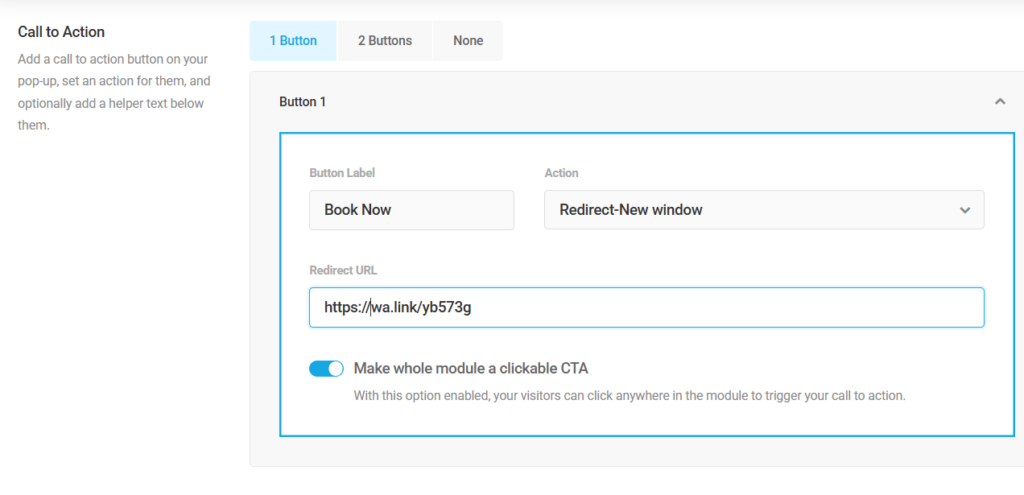
- Update the button text to something active, such as “Register Now” or “Get the Discount”. Enter the link where you want visitors to go. You can create more than 1 CTA with different link
3. Design the Look
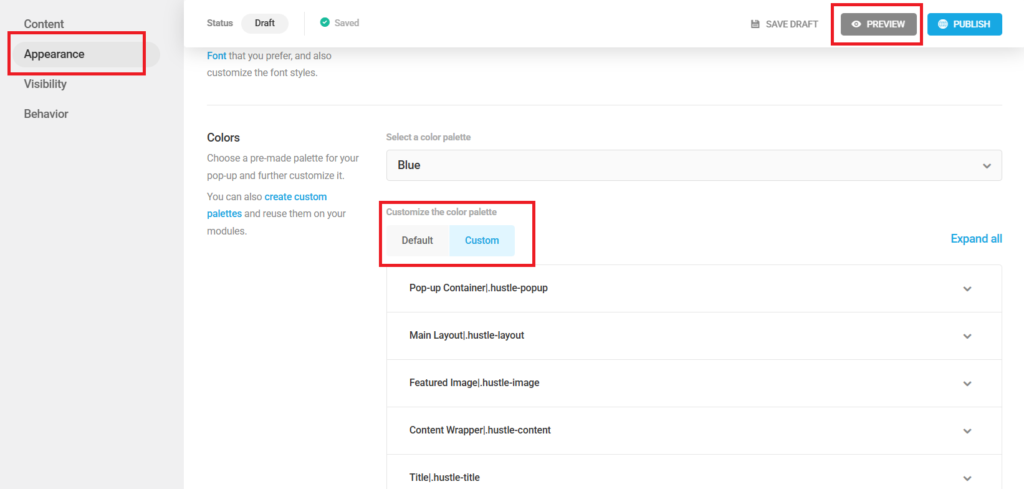
- Go to the Appearance tab.
- Choose your colours, fonts, and layout style.
- Use the Preview button frequently to ensure the design looks professional on both desktop and mobile screens.
- If you are not sure, you an always use the default design
4. Set the Triggers
Triggers determine when your pop-up appears. You can manage these in the Behavior tabs.
- Visibility Rules
- Decide how often do you want to show this pop-up to the same visitor
- Schedule
- You can set the start and end date of the pop-up
- Trigger
- You can set the rules that trigger the pop-up. Example, after 2 seconds, or when scrolled to 50% of the page, or when the user want to close your website
- Closing Behaviour
- Determine how your pop-up will behave after a visitor closes it.
- It is recommended not to show the pop-up again for some time (eg. 1 day) after its being closed for a better user experience
5. Choose Where it Appears
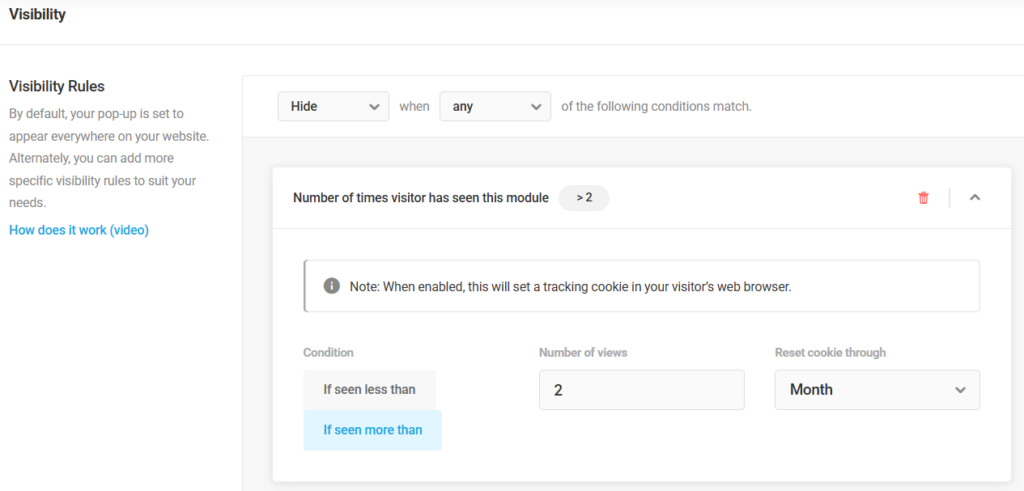
Under Visibility, you can choose to show the pop-up on your entire website or only on specific pages related to the promotion. You can set it such that the pop-up appears only when the visitors are from certain countries, or using certain devices.
You can also hide the pop-up for users who have already seen it to avoid being intrusive.
6. Publish and Track
- Once you are happy with the settings, click Publish.
- Check the Hustle Dashboard later to see how many people have viewed and clicked your pop-up. This data helps you improve your future promotions.